Connect Filem to Claude
Add Filem as a connector in Claude in four clicks, then make videos, images and ads right from your chats.
What you'll set up
Connect Filem to Claude once, and Claude can make images, video clips, ad scripts and voiceovers for you right inside the chat. Every render is paid from your Filem workspace credits.
Claude on the web or desktop
- Open filem.ai/connect and copy the connector URL:
https://www.filem.ai/api/mcp/mcp - In Claude, click Customize in the sidebar, then open the Connectors tab.
- Click Add, then Add custom connector.
- Name it Filem and paste the URL.
- Click Continue and sign in with your Filem account. Filem now shows in your connectors with a ✓.
Claude Code
Signed in to Claude Code with the same Claude account? Filem is already there. Type /mcp to check.
If Filem doesn't show (for example, Claude Code runs on an Anthropic API key), run this in your terminal, then sign in to Filem in the browser that opens:
claude mcp add --transport http filem https://www.filem.ai/api/mcp/mcp
To bill a team workspace instead, create an API key in Workspace Settings and pass it as a header:
claude mcp add --transport http filem https://www.filem.ai/api/mcp/mcp --header "Authorization: Bearer YOUR_KEY"
Try it
Start with "What's my Filem balance?". Claude checks your credits and the price before it spends anything.
- "Here's my website. Make a 15-second UGC-style TikTok ad for it with Filem."
- "Make a podcast-style split-screen reel about 3 mistakes small brands make with TikTok ads."
- "Send that ad to the Filem video editor and make the captions bigger."
Everything Claude makes is saved in your MCP history.
More Basics tutorials
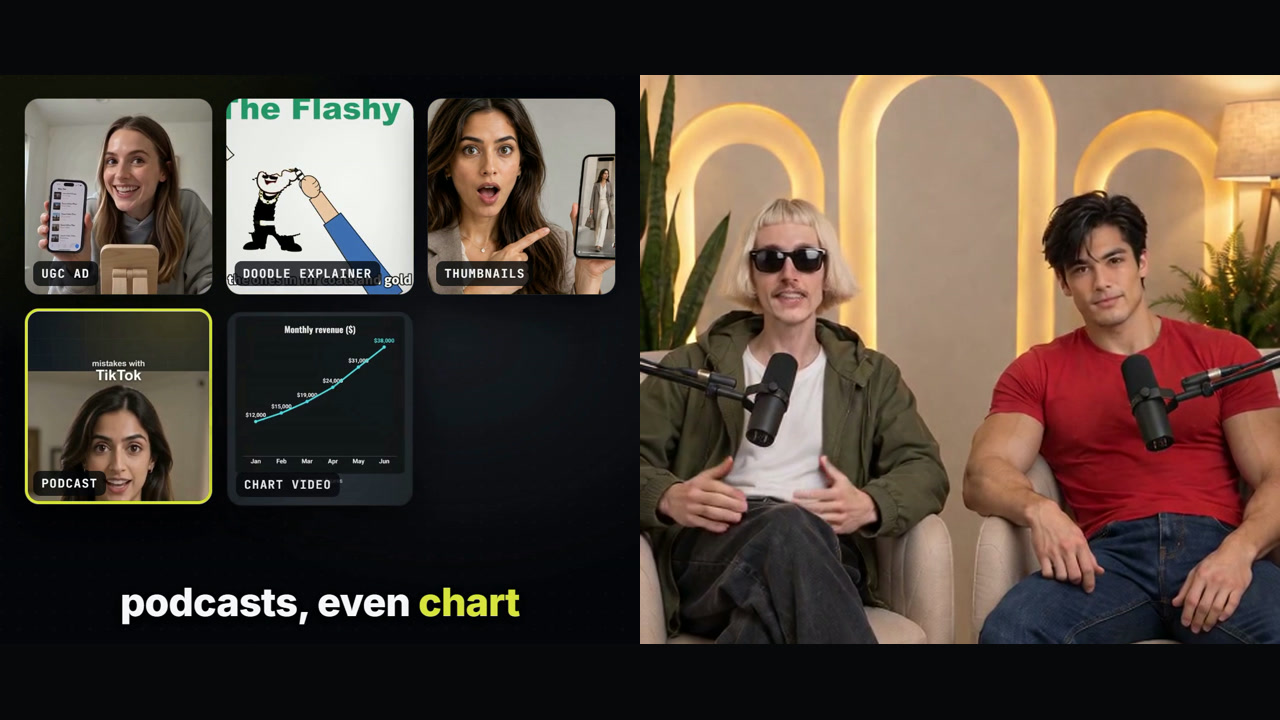
What is Filem? A quick tour
Two hosts show what you can make with Filem and Claude, and how it works: connect in four clicks, ask in one sentence, see the price first.
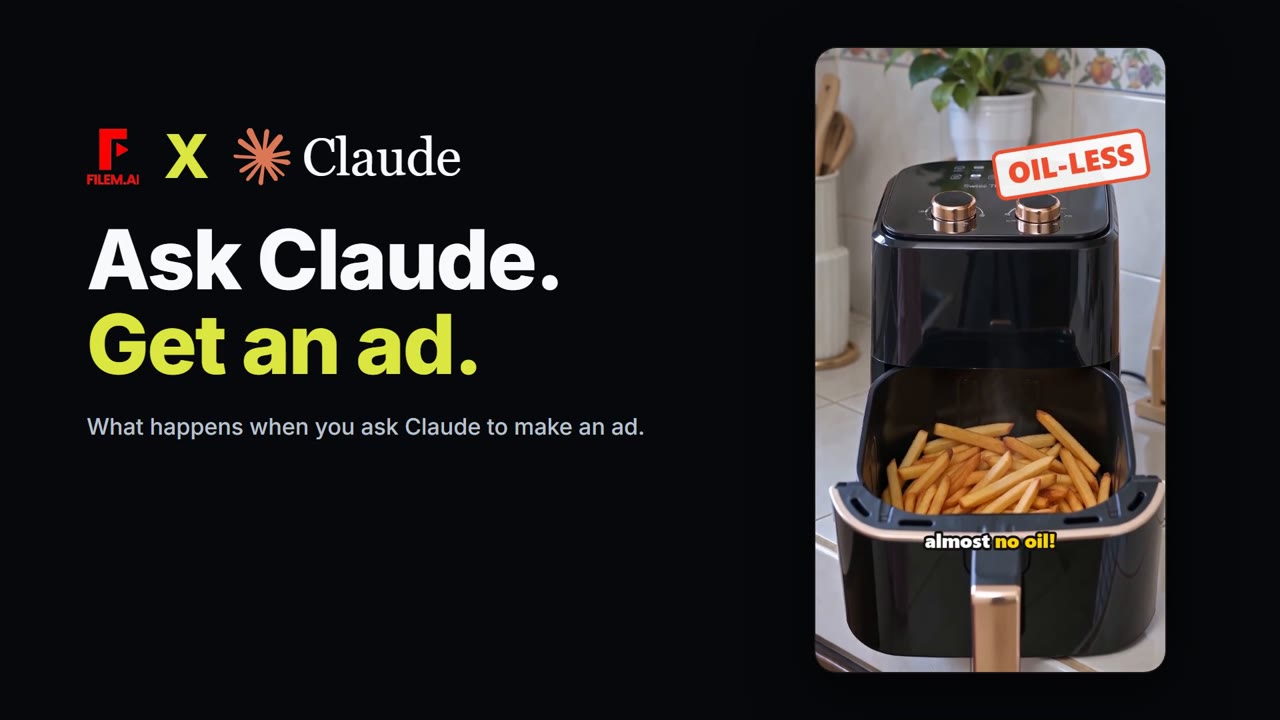
What happens when you ask Claude to make an ad
One sentence typed into Claude, and Filem's tools do the rest: script, shots, a price you approve, then a finished ad.

A brand video with no crew, no studio, no editor
A 42-second video about what Filem does for your brand, presented by a host who is not real: his voice and talking were made in Filem.