Schedule social posts with Claude
One chat: Claude checks your social setup, drafts a Facebook post, schedules it, edits it and cancels it. Each step asks first and costs no credits.
What you'll do
Run your whole posting routine from one Claude chat: check the setup, write a post, schedule it for a time, change it, and take it back. Everything here is free (it uses your own Blotato or Zernio account), and nothing goes out until you allow it.
First time? Connect Filem to Claude: Connect Filem to Claude.
You also need a publishing account (Blotato or Zernio) connected, and your channels turned on, in Social Studio → Settings.
1. Check your setup
Check whether my Filem social setup is ready to post. Test the saved provider keys too.
Claude says which provider is active, whether its key still works, and how many channels are on.
2. Draft the post
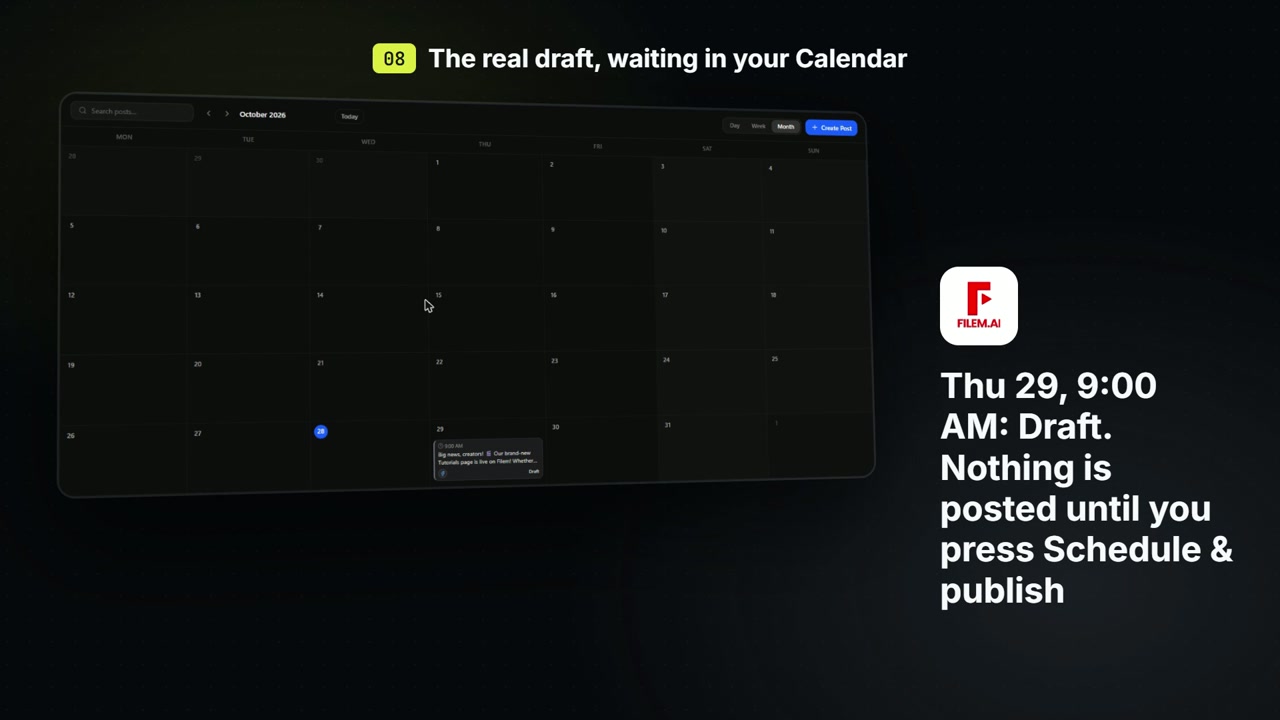
Write a short Facebook post for my Filem.ai page that tells people they can now draft and schedule posts from Claude with Filem. Friendly tone. Draft it for next Wednesday 9am Malaysia time.
Claude writes the caption and saves it as a draft. Nothing is sent or scheduled yet.
3. Schedule it
Looks good, schedule it.
The Allow once card shows the full caption and the exact time before anything is queued. Claude only schedules for a future time and never posts immediately.
4. Change it, or cancel it
Replace the hashtag line with: See the new tutorials at filem.ai/tutorials
Cancel it, this was just a demo.
A scheduled post can be edited or canceled until it goes out. A canceled post stays in Social Studio → Posts → History marked Canceled.
Everything Claude makes is saved in your MCP history.